Row-level security (RLS) lets workspace admins control which rows of data each member can see. To set up row-level security in Steep, you define access policies on modules. When a policy is in place, Steep automatically filters metrics and entity query results so members only ever see the rows they have access to. 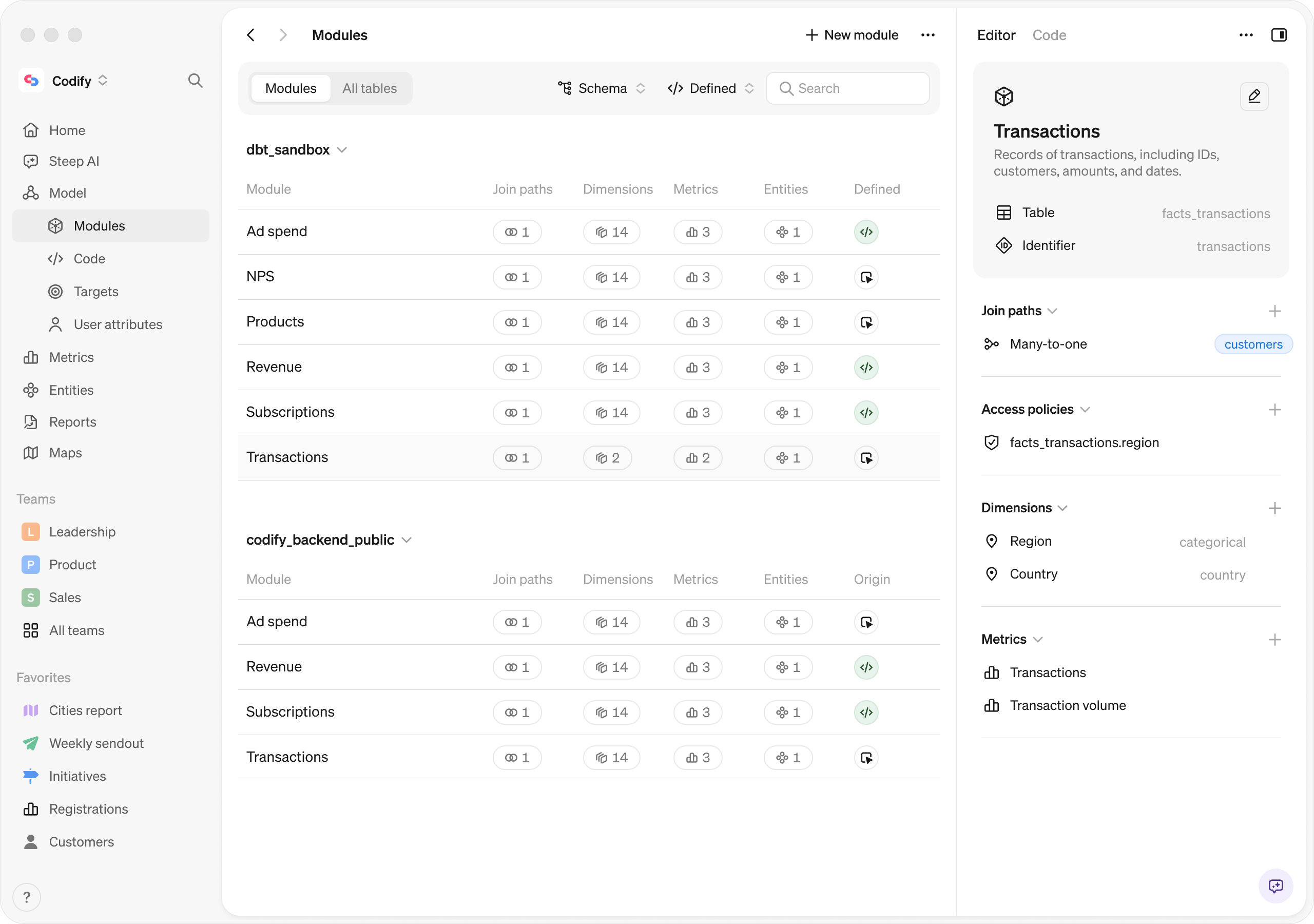
How access policies work
An access policy on a module has two components:
- The column in the module's data that contains the row-level information you want to filter on.
- The user attribute that will determine how the policy filters data for each member.
There are two types of user attributes you can use:
- Member email: Match the data column directly against the logged-in member's email address. No additional setup required beyond defining the policy.
- Custom user attributes: Connect Steep to a table in your database that defines custom attributes for each member, such as who they manage, their market, or cost center, and match the column to one of those attributes.
Prerequisites
Before setting up row-level security in Steep, you need to have:
- Modules defined in Steep. Each module you want to apply row-level security to will need its own access policy. If you haven't set up modules yet, see the modules documentation.
- Identified which column in each module you want to filter on, for example
market,account_manager_email, oremployee_id. You can also use a column from another module, as long as the modules are connected via a join path. - A detailed overview of which members should see which rows. For example:
sophie@company.comshould see employeesalex@company.comandsara@company.com, and marketsSEandUS.
Setting up row-level security:
1. Build user attribute table
If you're defining access policies only by members' email addresses, you can skip this step.
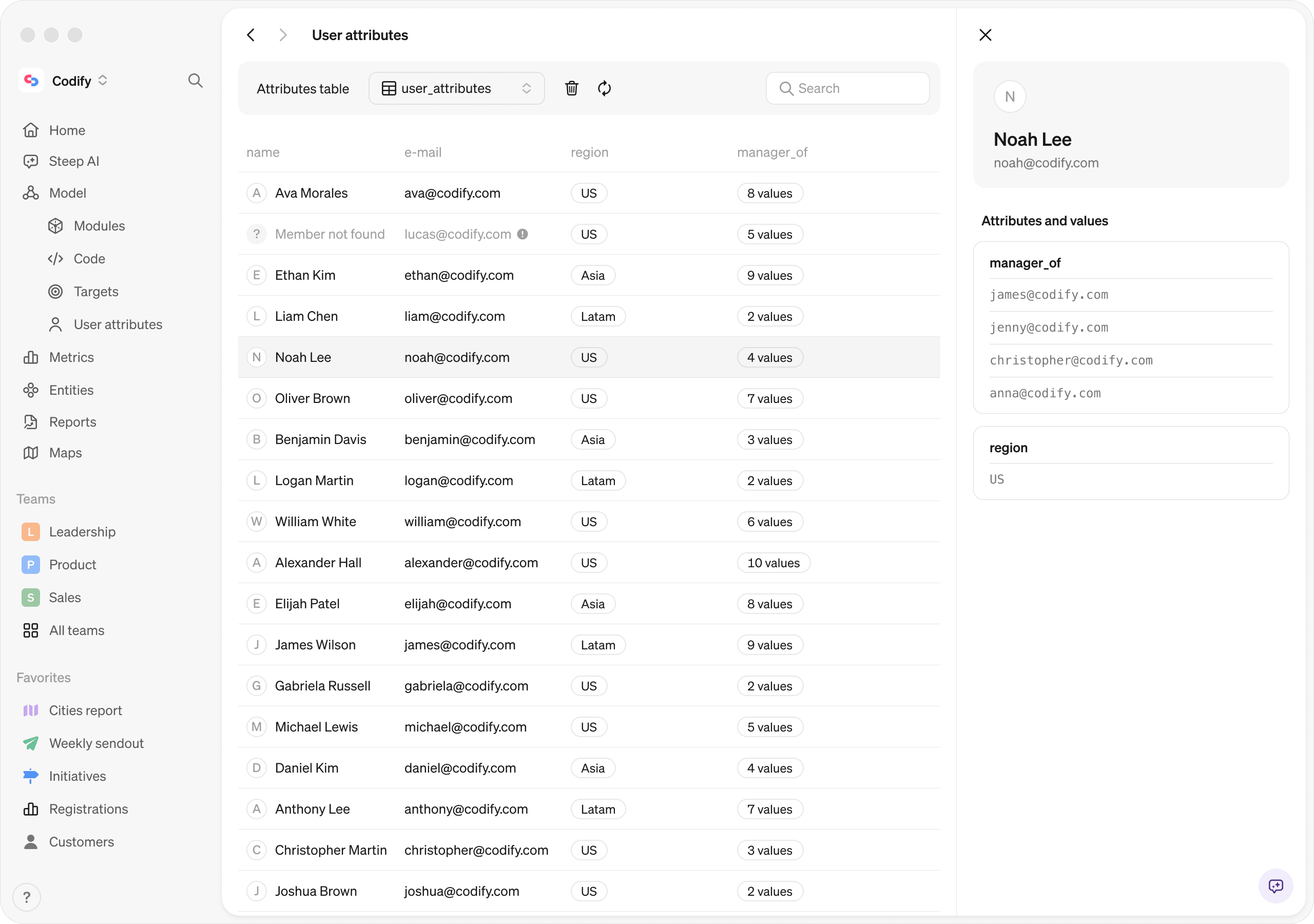
Create a flat table or view in your database with one column for the member's email (user_email) and one column for each attribute you want to define. Each row maps a member to a single attribute value, so if a member has access to multiple values, they need a separate row for each. You can define as many attribute columns as you need, and each becomes available in the policy editor.
Example:
| user_email | manager_of | market |
|---|---|---|
| sophie@company.com | alex@company.com | null |
| sophie@company.com | sara@company.com | null |
| sophie@company.com | null | SE |
| sophie@company.com | null | US |
| alex@company.com | sara@company.com | null |
| alex@company.com | null | US |
2. Connect the user attribute table
Once your table is ready, go to Model → User attributes and point Steep to the table. Steep will automatically sync the values and make all columns available as user attributes. You can refresh the attributes manually, or Steep will pick up changes on its own based on the workspace default cache settings.
3. Define access policies
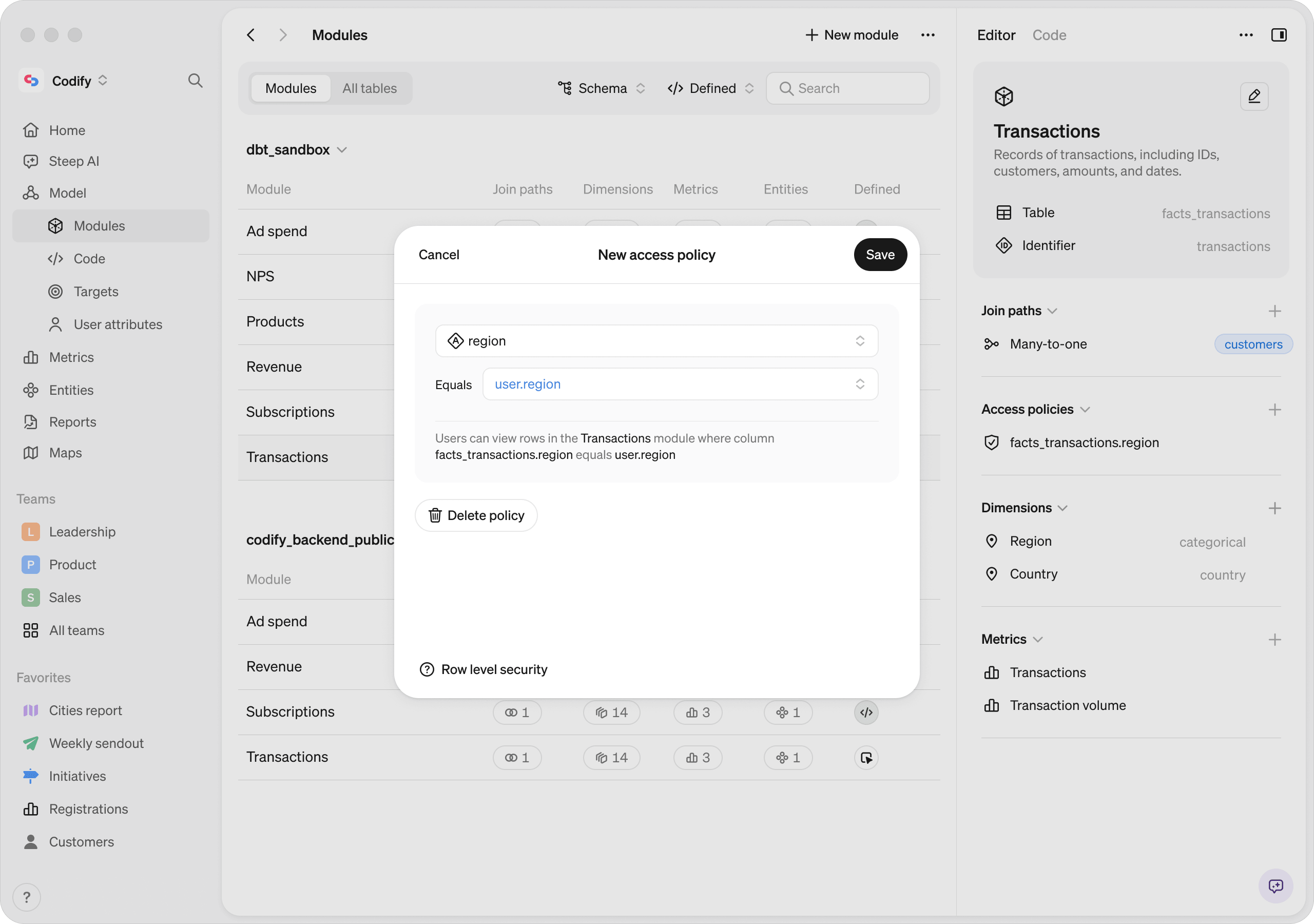
Go to Model → Modules, select the relevant module, and click + Access policy. Select the column you identified in the prerequisites and match it to the corresponding user attribute. Any custom user attributes you've connected will appear alongside the built-in user.email attribute. If you have multiple policies in a single module, they will be combined with an AND.
Frequently asked questions
Who sees what when an access policy is in place?
Members with a matching policy see only the rows where their attribute value matches the policy column, for all metrics, targets and entities built on that module. Members with no matching rows see no data at all for that module. Admins see all data in the workspace, regardless of any access policy defined.
Does Steep AI respect access policies?
Yes, the Steep Agent uses your access policy when responding to queries, so members only ever have access to the data rows they're allowed to see.
Are there any current limitations?
Yes, there are limitations to be aware of:
- Slack subscriptions: Charts and tables with an access policy will show a "Could not load data" in the PDF report delivered to Slack.
- API access: Steep API requests authenticated with an API key are not filtered by access policies. OAuth (Bearer) requests are filtered for the signed-in member.