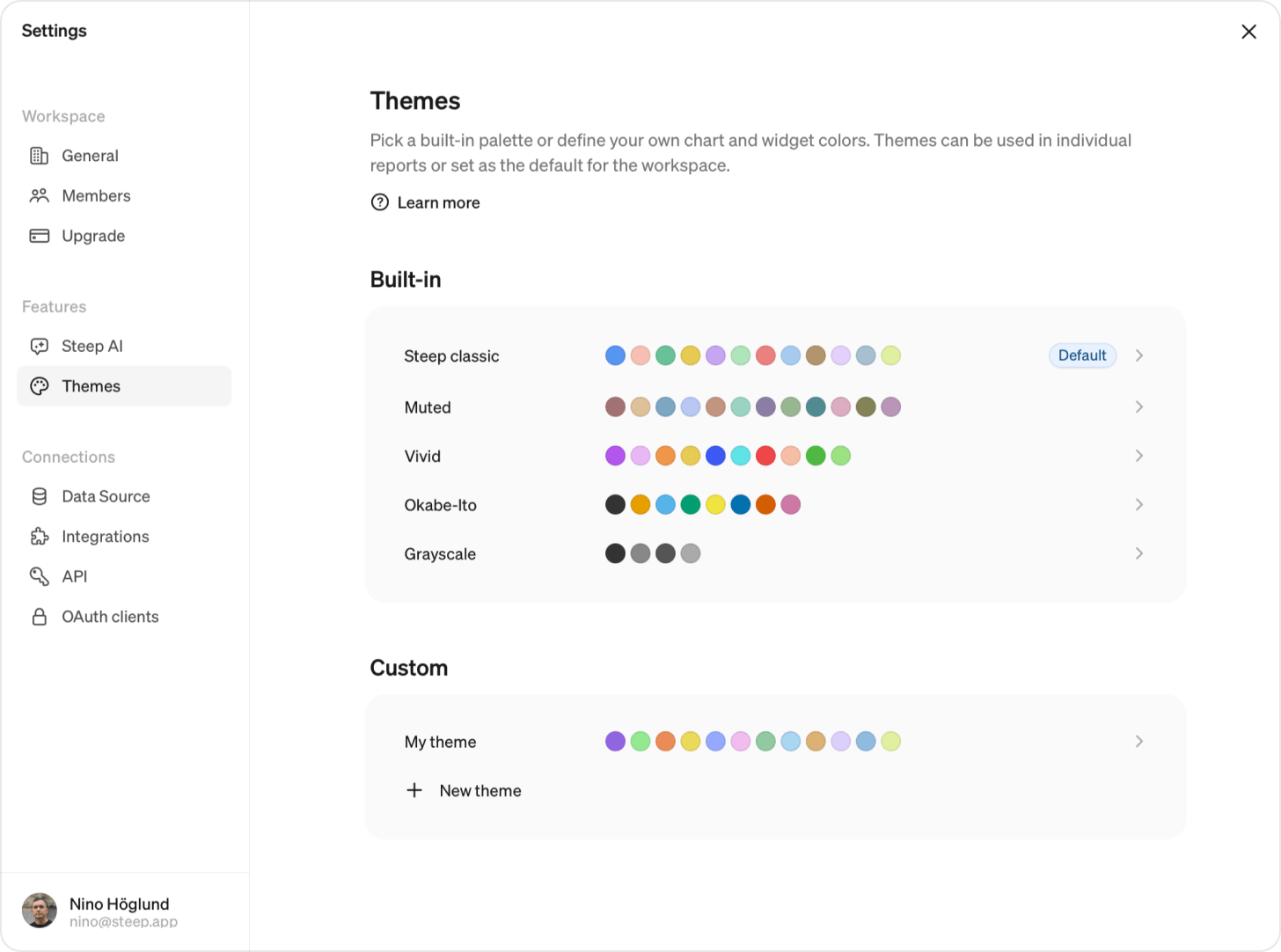
Themes let you customize the colors used across Steep to better match your brand and preferred look and feel.
Choose from one of Steep's built-in themes, or create a custom theme by defining your own chart and widget colors.
Admins
Can create new themes and set the workspace-wide theme.
Everyone
Can select a theme when editing a report.
Create a custom theme
Create a custom theme when you want Steep to better match your brand or visual identity.
- Go to Settings → Themes
- Click New theme
- Give your theme a name
- Customize the Chart and Widget colors (new themes start from the Steep classic theme's colors as a baseline)
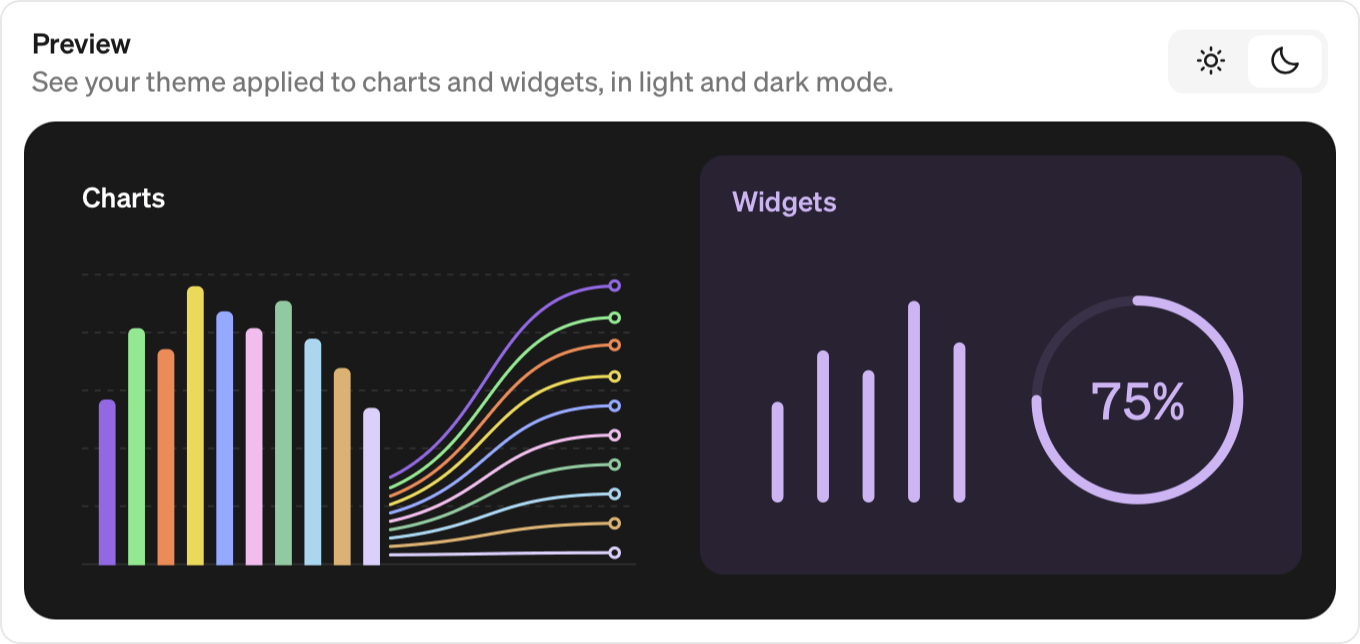
- Use the preview to see how your theme looks in light and dark mode
- Click Save changes
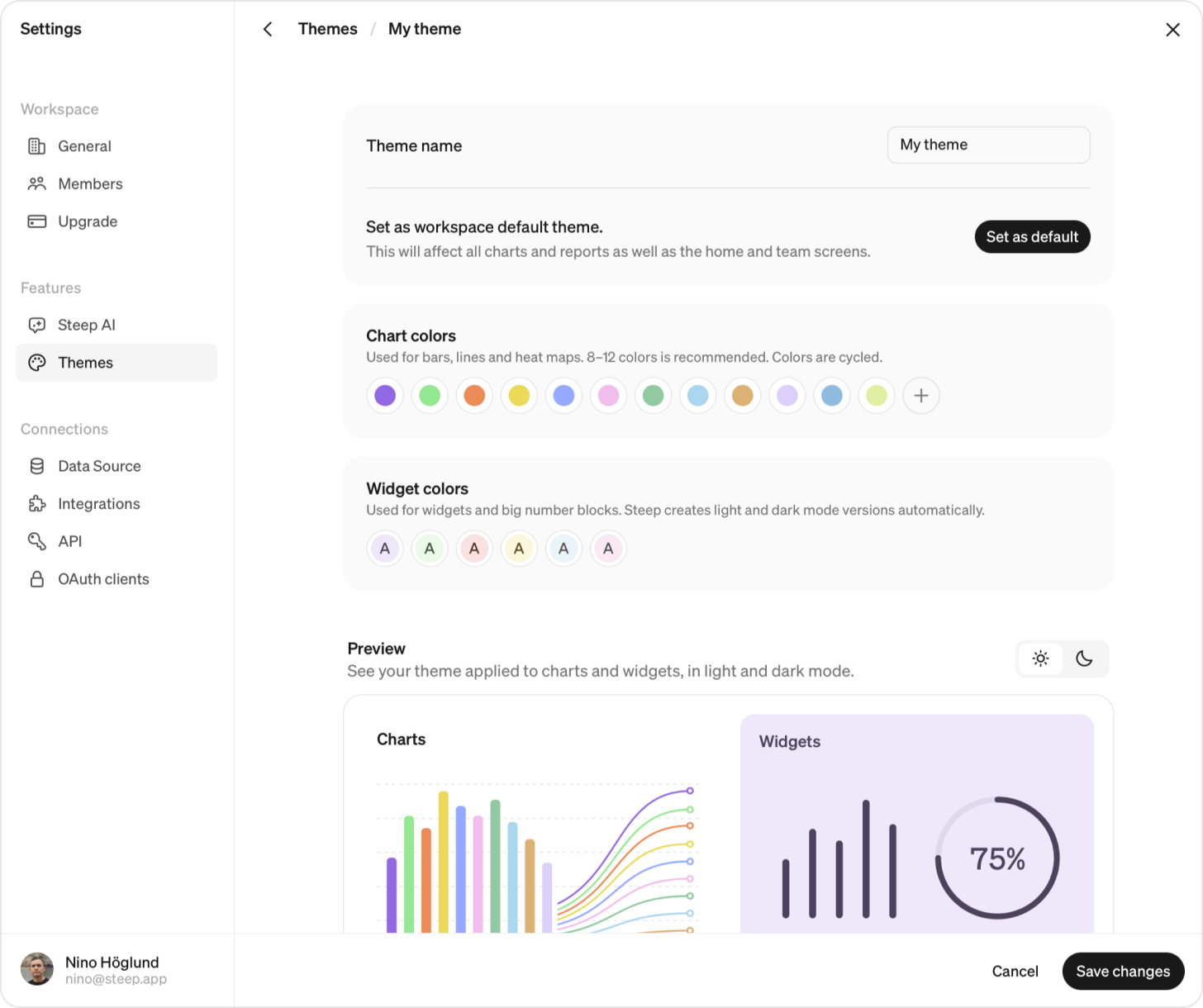
Chart colors
Chart colors are used when visualizing data in line, bar, and rank charts, as well as heat maps, which appear in Maps and pivot tables.
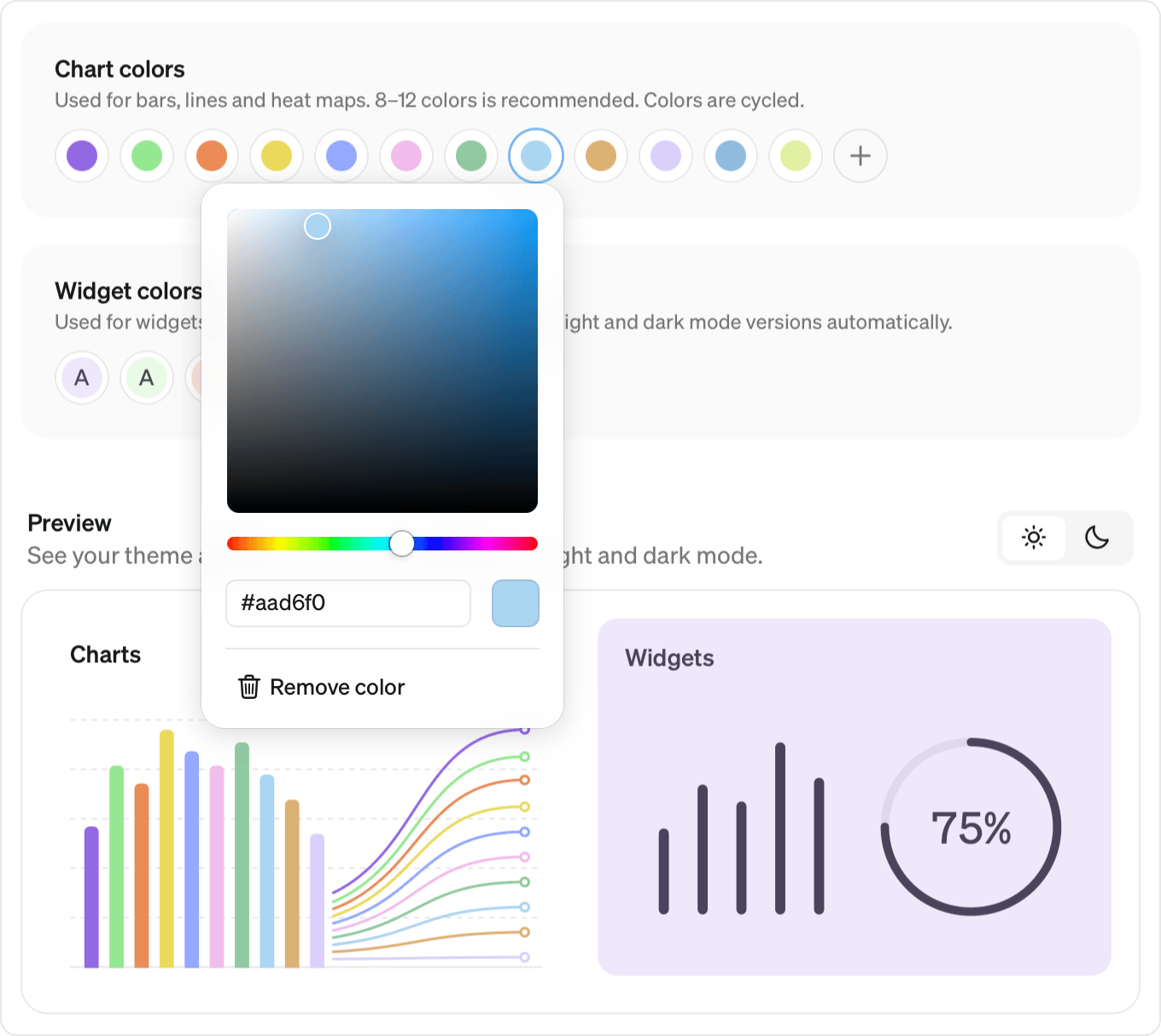
Add colors to define the palette Steep uses, and drag them to change the order. Colors are applied in the order they appear in the theme, so the colors earlier in the list get used most often.
We recommend adding 8–12 colors. If a breakdown has more values than you have colors, Steep cycles the colors in order.
Click a swatch to choose a color using the color picker, or enter a hex value directly.
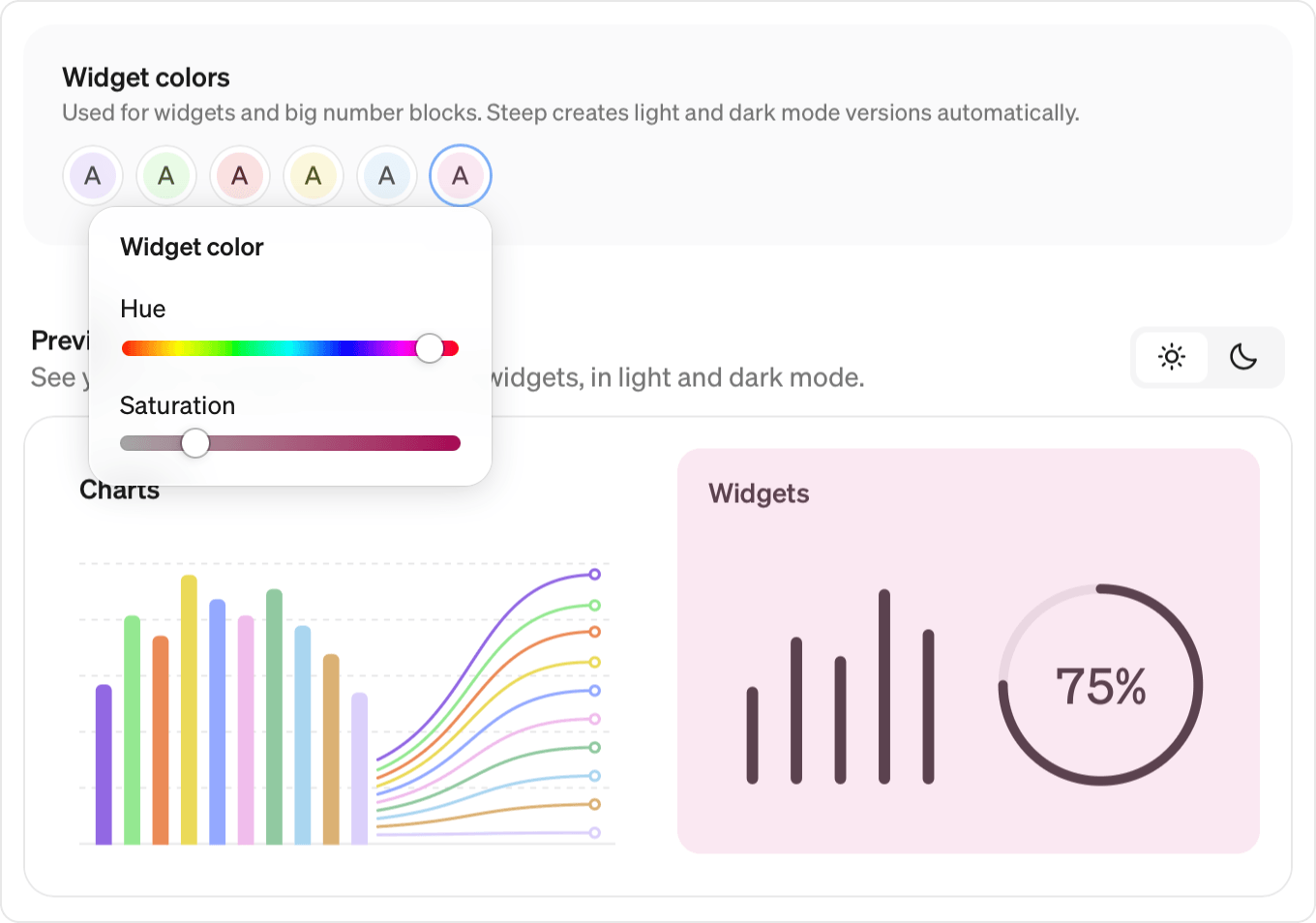
Widget colors
Widget colors are a palette you can choose from when customizing individual widgets on Home and Team screens, or big number blocks in reports. Select seven widget colors when creating your theme.
For each widget color, you choose a hue (the color itself) and saturation (how vivid it is). Steep automatically creates light-mode and dark-mode versions of that color. As you adjust the hue and saturation, the preview updates immediately. Switch between light and dark mode to see how the color looks in each.
Set the default theme
Go to Settings → Themes to view the available themes.
By default, your workspace uses the Steep classic theme, with a blue primary color.
Select a theme to preview how its colors will look throughout the app. To use different colors, create a custom theme.
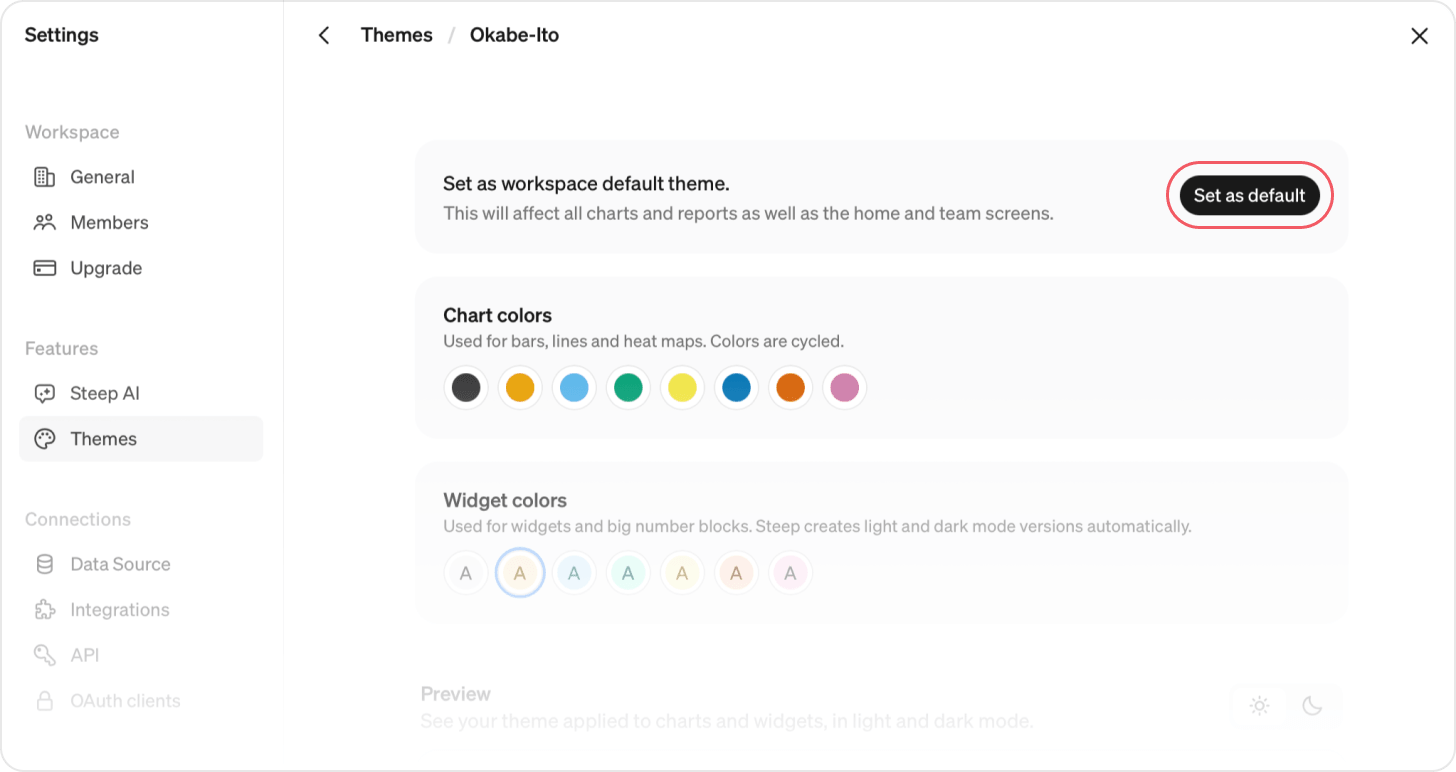
To set any saved theme (built-in or custom) as the workspace default:
- Go to Settings → Themes
- Select the theme you want to use
- Click Set as default
The default theme is applied across the workspace for all members.
Themes in reports
Individual reports can use a different theme from the workspace default. This only applies to reports. Home, Team screens, and Explore always follow the workspace's default theme.
To use a different theme for a specific report, click ... in the upper-right corner of the report and select Theme. Choose any built-in or custom theme from the dropdown to give that report its own look, or select Default to follow the workspace theme.
Delete a custom theme
- Go to Settings → Themes
- Click the custom theme you want to delete
- Scroll to the bottom of the page and click Delete theme, then confirm
Please note
Deleting a theme cannot be undone. To delete the active default theme, first set another theme as the default. Reports using the deleted theme will revert to the workspace default.
Light and dark mode
Themes work automatically with both light and dark mode.
Chart colors are displayed as defined in the theme, except for the Grayscale theme, whose chart colors adapt automatically to the selected system mode.
Widget colors adapt automatically to provide an appropriate appearance in each mode.
Good to know
- Custom themes must be saved before they can be set as the workspace default.
- To delete the theme that's currently the workspace default, first set another theme as the default.
- Home, Team screens, and Explore always use the workspace default theme.